

1
Know the switches
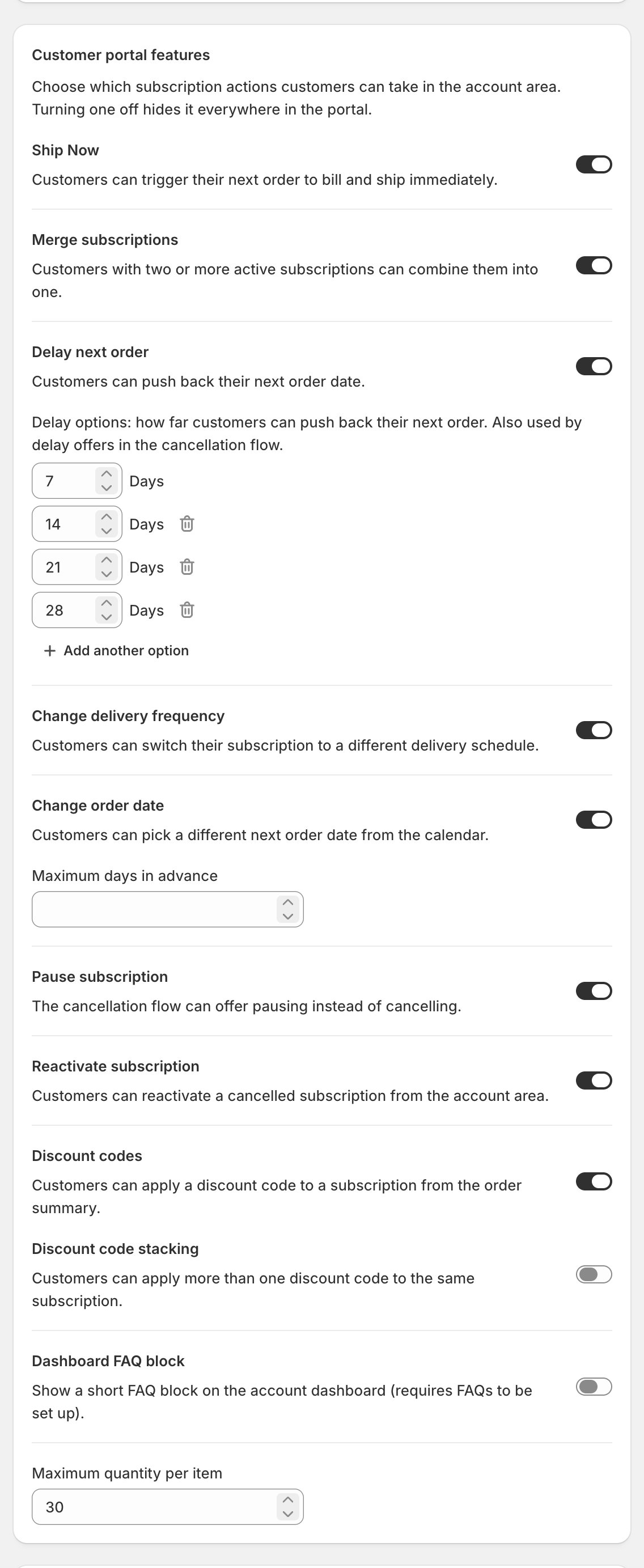
- Turning a switch off hides that action everywhere in the portal. Eight start on, two start off:
Checkpoint: the on/off pattern matches the self-service you want.
2
Set the limits under them
- The limits live inline under their switches: Delay options (defaults 7, 14, 21, 28 days; Add another option for up to eight, each 1 to 365), Maximum days in advance under the order-date switch, Maximum stacked discounts (1 to 20, blank for no limit) under the stacking switch, and Maximum quantity per item (default 30).
- The delay options are also used by delay offers in the cancellation flow.
- The quantity cap is enforced on the server and stops raises only; a line already over a lowered cap stays as it is. The other limits shape what the portal offers, not server locks.
Checkpoint: each preset and cap is a number you’re happy to let subscribers pick.
3
Know the two side effects
- Save offers pass through these same switches: a pause offer never shows while pausing is off (When a save offer doesn’t show).
- Already-paused subscribers can always resume from their portal; resuming has no switch.
Checkpoint: nothing switched off is still promised by your cancellation flow.
These are preference gates, not locks. They shape what the portal offers, not a security boundary. Doing it for a subscriber: When a subscriber asks for help.