

Switching? Leave the old platform’s plan groups alone: attached, active, in their admin. Current subscriptions bill through them. Only their widget comes down, in the step below; that stops their new signups and nothing else.
1
Place your widget
- Open the theme editor and go to your product template.
- Add the Subscription options block near the buy buttons. The block hides itself on products with no plans, so placing it store-wide is safe.
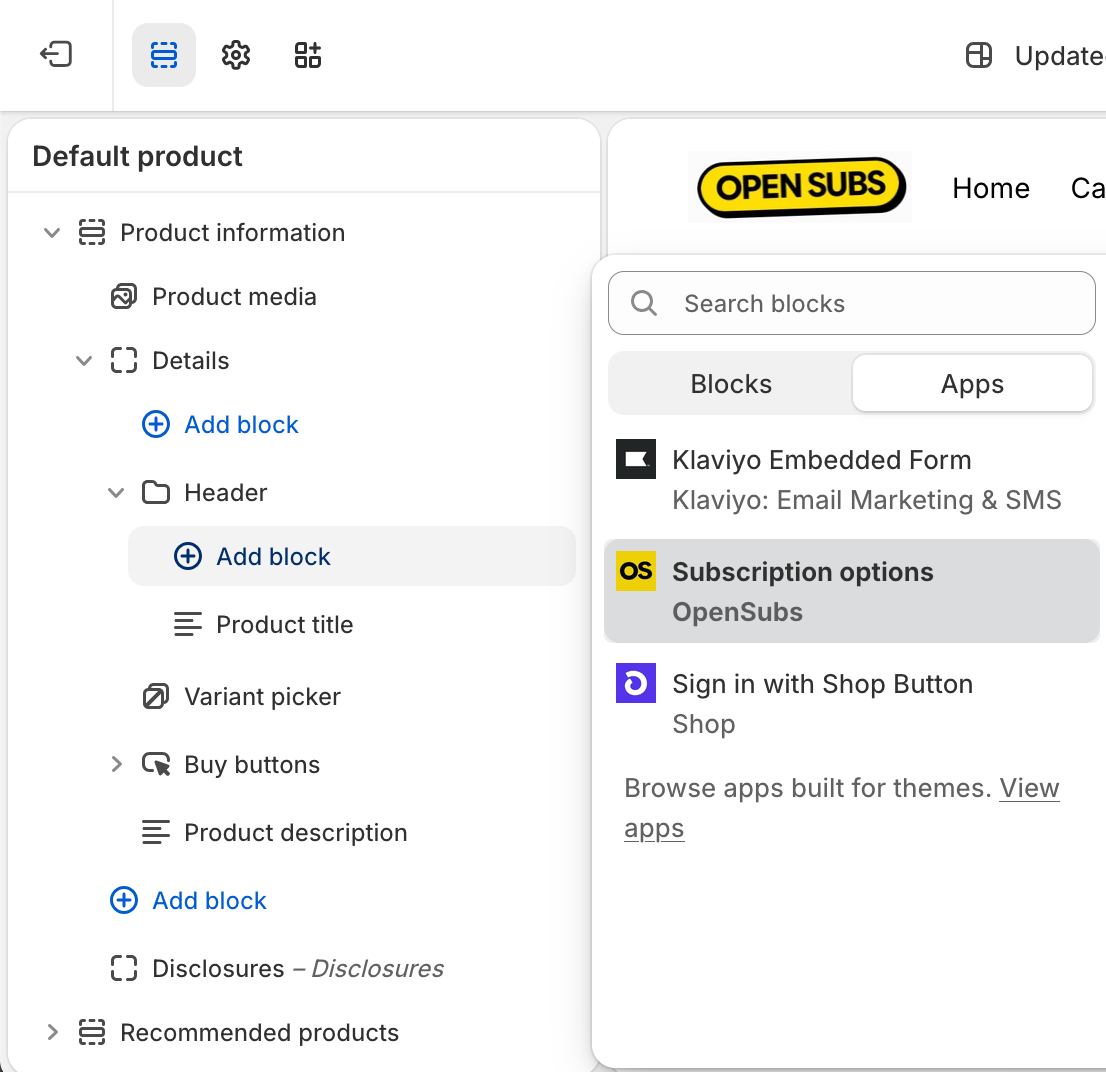
- If your theme needs the app embed for quick-view, enable it at Settings > Extensions.
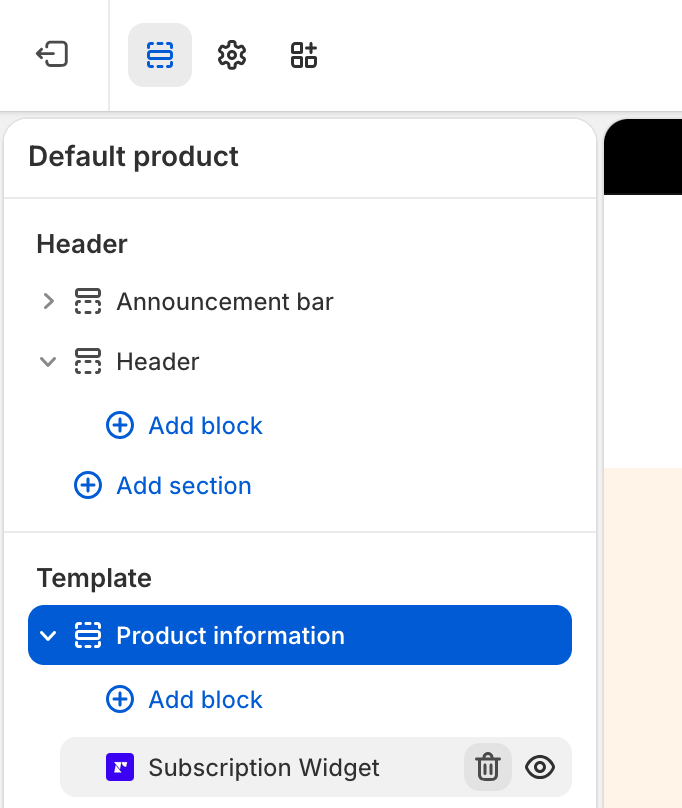
- Switching? Remove or hide the old platform’s widget while you’re in here.
2
Save and check the page
- Click Save. The swap is done.
- Your product page now offers one-time and your subscription plans, priced right.
- Using a sidebar cart with a “switch to subscription” upgrade? Confirm it offers your OpenSubs plans now.
Checkpoint: exactly one subscription offer on the page: yours. If you’re switching, the old platform’s existing subscriptions are still billing, untouched.
Widget not showing later? When the subscribe option disappears is the fix; Settings > Extensions shows each surface’s placement.
The revert, if you ever need it. Two steps, both on your side:
- In the theme editor, take the Subscription options block back out.
- In the OpenSubs admin, delete your plan groups at Settings > Selling plans.