

1
Check placement on Extensions
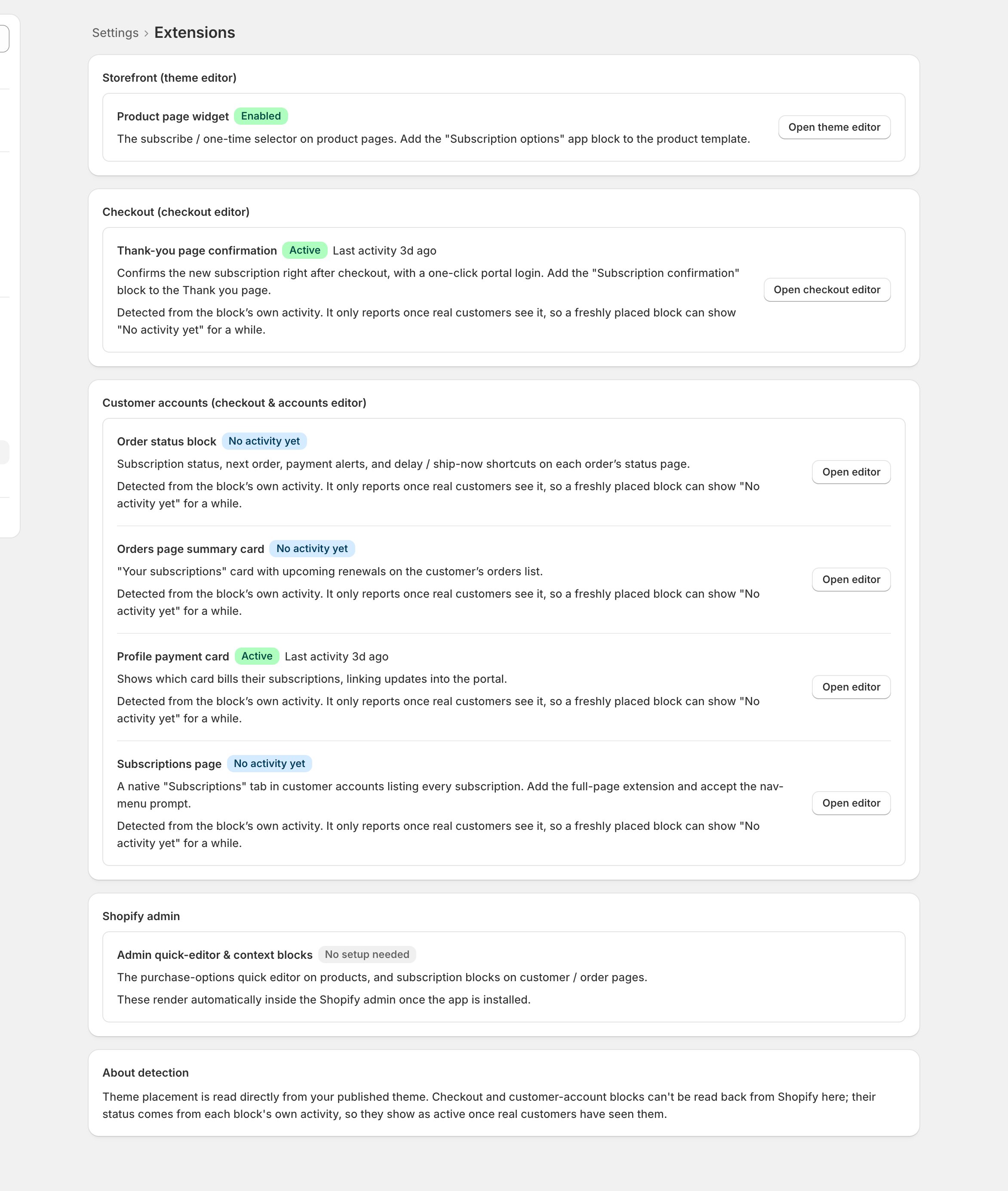
- Open Settings > Extensions: a row per surface, each with its placement status and a button into the right editor (theme editor for the product page, checkout editor for the rest).
- If the widget is missing, follow that button and add the block back to the product page, the same move as go-live’s The swap.
- The product-page row reports Enabled or Not enabled: from Shopify when opened inside the Shopify admin, otherwise from a check of your published theme (Unknown means that check couldn’t run). The checkout and customer-account rows report Placed or Not placed inside the Shopify admin; outside it they fall back to activity, where “No activity yet” means untested, not necessarily unplaced.
Checkpoint: the product page shows the subscription option again, in a private window too.
2
The widget is there but looks broken
- A widget that renders unstyled, or where every add lands as one-time, usually means the storefront is serving leftover development assets.
- That belongs to whoever runs your code: a redeploy of the extensions fixes it; theme editing can’t reach it.
Checkpoint: styled widget, and a test add lands as a subscription.
After any theme work, buy once. Open a product page, add the subscription option to cart, and confirm the cart says subscription: the same proof your go-live used (Prove it with real money).