

1
Create it
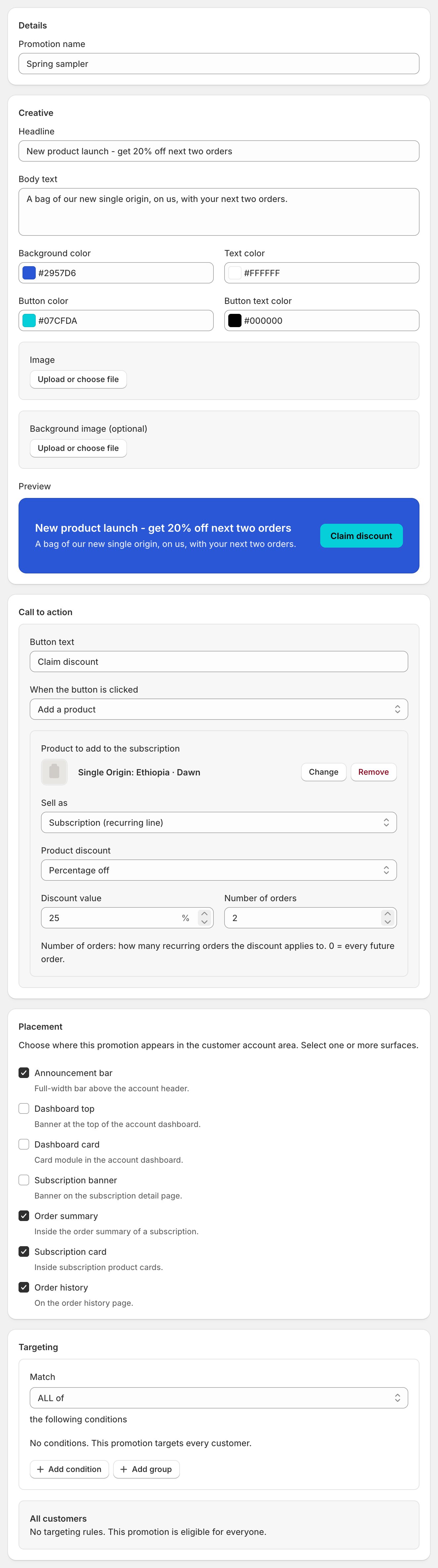
- Open Settings > Promotions and create a promotion. The editor runs top to bottom: Details (name it), Creative (message and look), Call to action (what the button does), Placement (where it shows; one promotion can hold several).
Checkpoint: the banner says one thing and the button does it.
2
Aim it
- Targeting picks the audience: conditions combined with ALL of / ANY of, plus a live estimate of matching subscribers. The condition builder works like the one in bulk operations.
- Schedule, in the right sidebar, bounds a seasonal promotion; leave it open-ended if standing.
- Press Activate when ready; until then it’s a draft no subscriber sees.
Checkpoint: the estimate matches who you meant and the badge reads Active.
3
Watch it, and retire it
- Performance tracks impressions, clicks, and conversions, plus revenue for the Add product and Apply discount calls to action (others show revenue as not tracked), with Export stats and Export activity CSVs.
- Pause a promotion to stop it showing; archive it when done. Stats stay.
- A temporary discount that can’t be taken back off a subscription surfaces as a banner on the promotion’s page and as the Promo revert abandoned alert on Settings > Operational health (When an alert opens).
Checkpoint: the funnel moves and nothing asks for attention.