

1
Upload your export
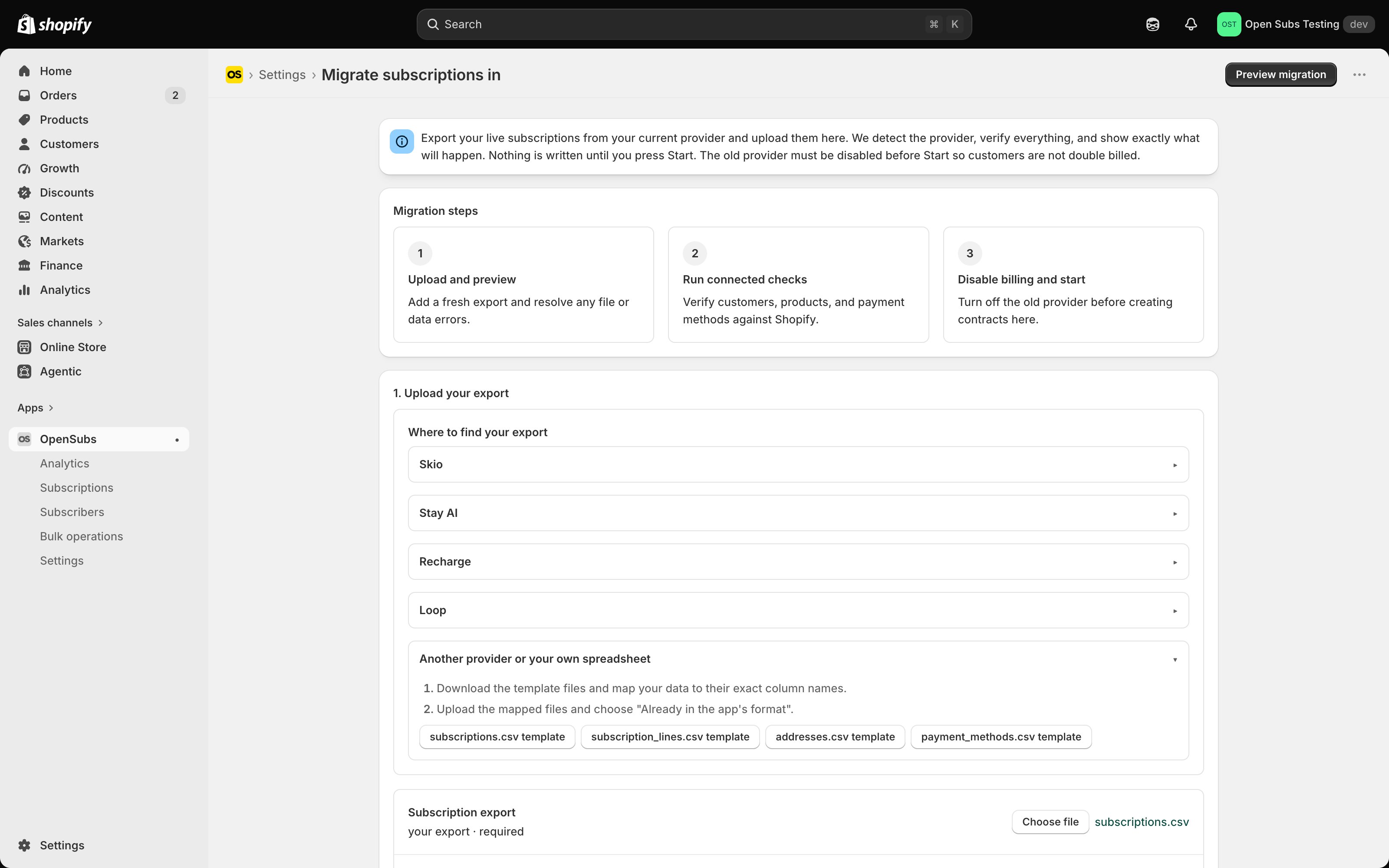
- Open Settings > Migration (the Migrate subscriptions in page) and choose your export file.
- There is no provider picker. The tool reads the columns and recognizes Skio, Stay AI, or Recharge on its own; a combined file splits itself, and an unrecognized file gets a clear message naming the supported exports.
- Coming from Loop or another provider? The same screen carries template files and mapping instructions. Upload the mapped files and choose Already in the app’s format.
2
Preview the migration
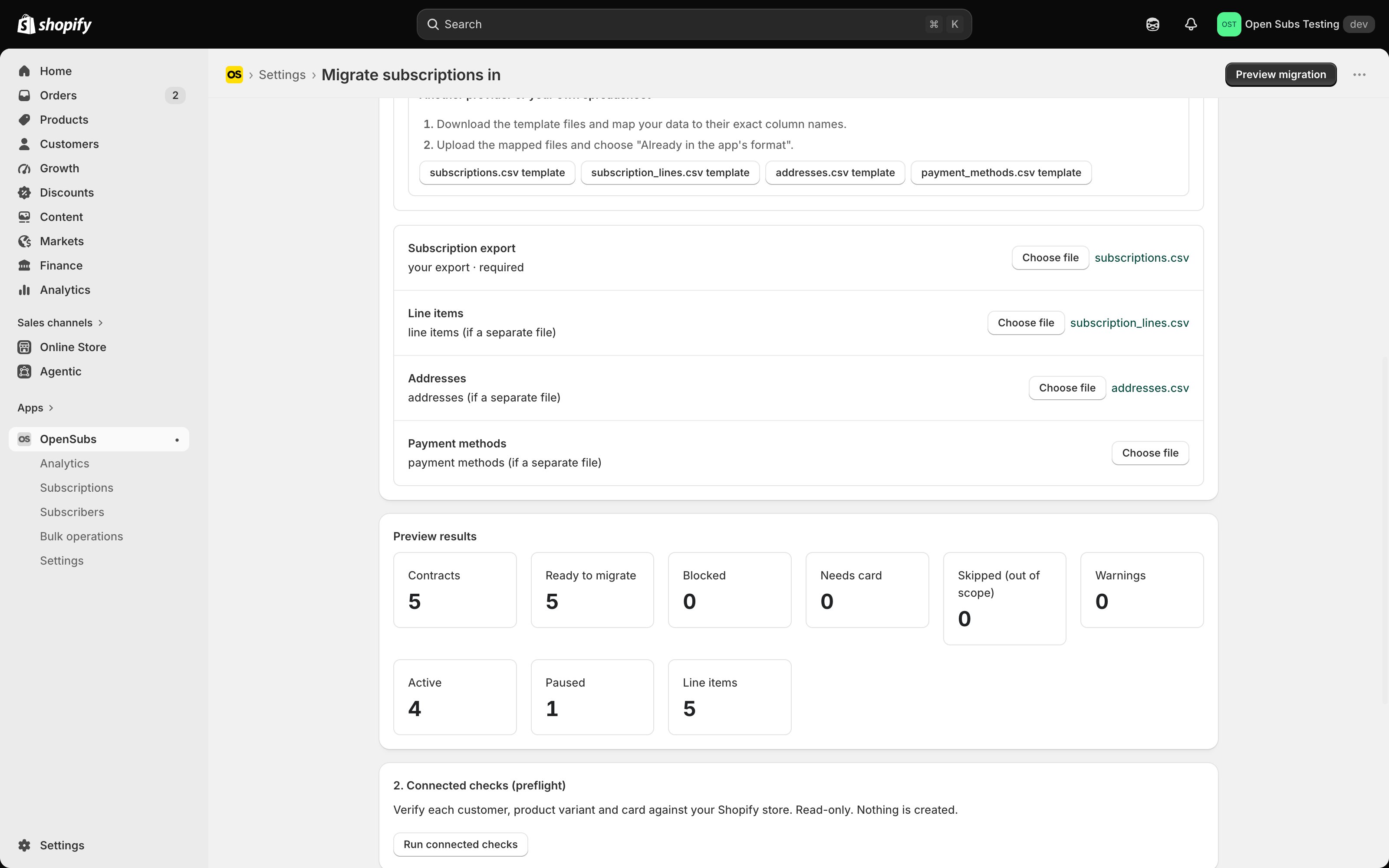
- Click Preview migration.
- You’ll see a count tile for everything in your file: ready to migrate, blocked, needs card, active, paused. The page’s promise sits right at the top: “Nothing is written until you press Start.”
Checkpoint: the preview is inspection only. Run it today, weeks early, as often as you like.
3
Fix and preview again
- Open each blocked card; it names the subscription and the reason in plain language.
- Fix the cell in your spreadsheet, re-upload, preview again. Loop until you like the numbers.
Checkpoint: blocked is zero, or every remaining block is one you’re deliberately holding back.
4
Run the connected checks
- Click Run connected checks.
- The tool reads your live store, read-only, and verifies every row against reality: the customer exists, the products exist, the saved card is real and belongs to that customer.
- A subscriber with no usable card isn’t failed. They’re held as needs card, not migrated yet; once they add a card in the portal, a later pass from a fresh export moves them (Prove it, then finish).
Checkpoint: the verified count matches what you expect to move today. Still zero writes.
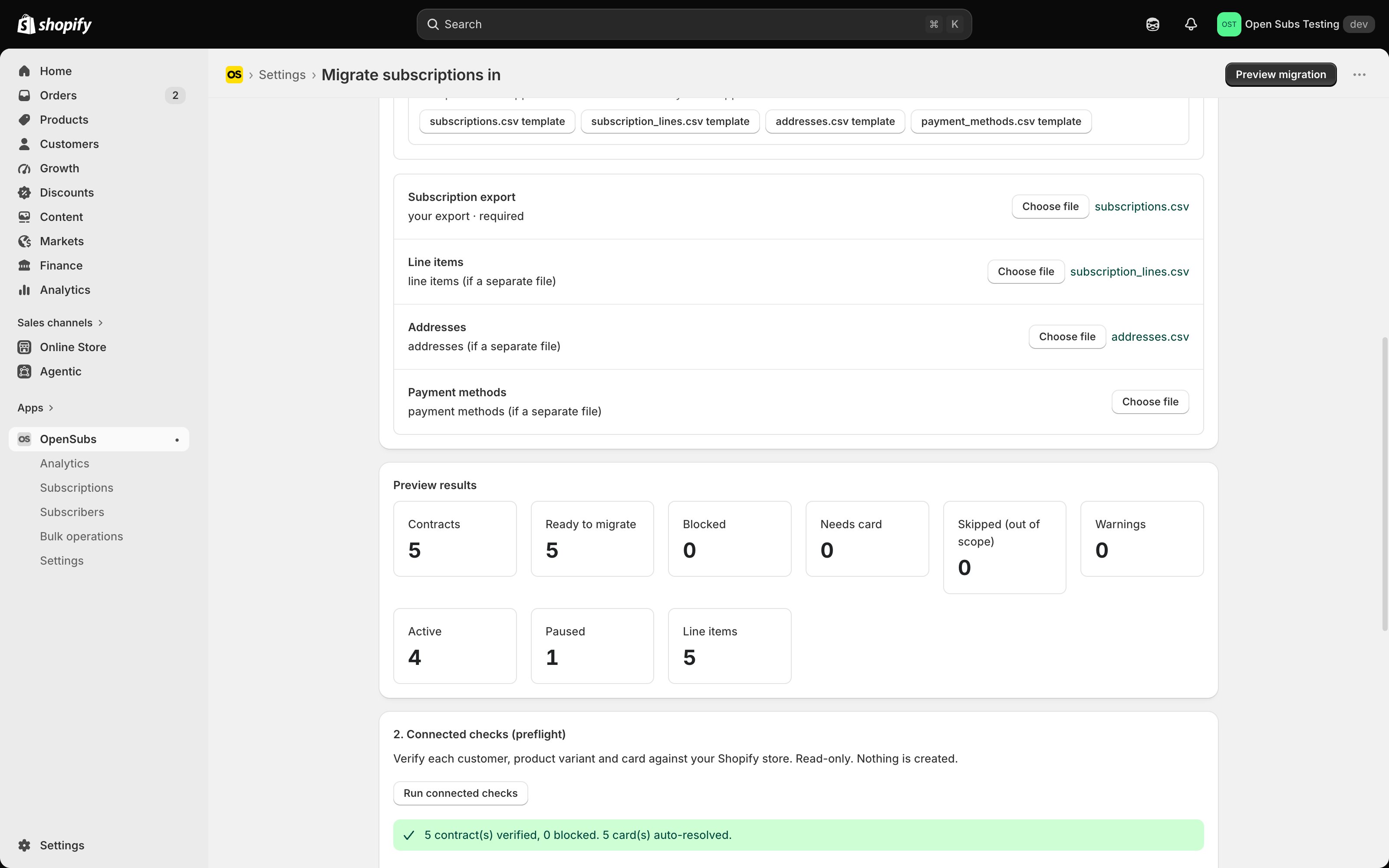
Partial migrations are normal. Verified rows migrate now; blocked rows wait with their reasons and never stop the rest. Fix causes at your pace, re-run the checks, and migrate the remainder: everyone already moved is skipped automatically. Temporary failures retry on the next run by themselves. Moving the clean bulk in one sitting and sweeping the rest that week is the normal shape.
5
Stop the old app's billing
- In the old app, disable or pause billing: their “pause program” or “disable charges” switch, not uninstall. Billing off, app still installed.
- Only one system may tell Shopify to bill. This is the one step where order matters, and the confirm screen makes you state you’ve done it.
Checkpoint: the old app shows billing paused or disabled.
6
Confirm and migrate
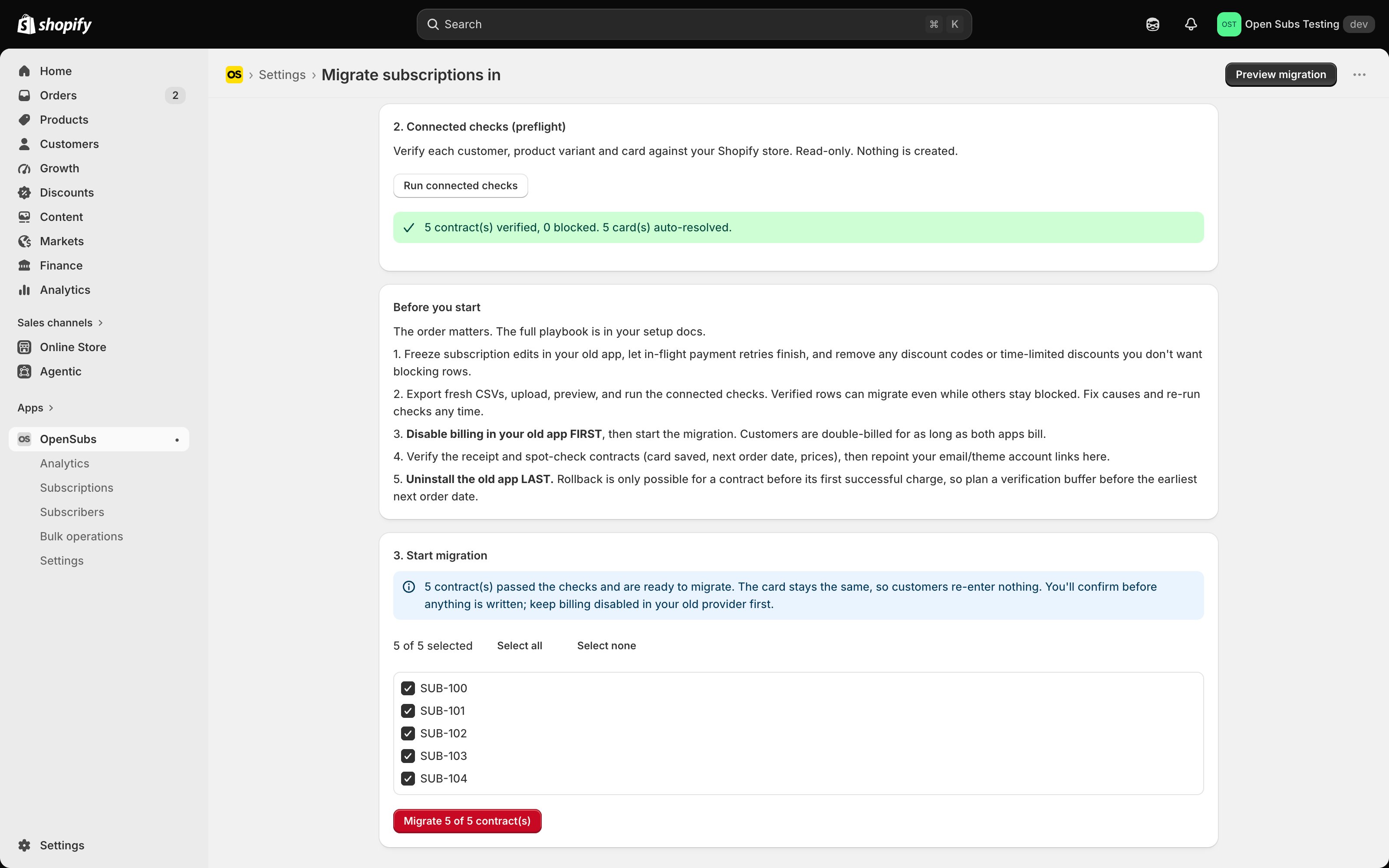
- Every verified row comes pre-selected; untick anything you’re holding back. Press Migrate N of M contract(s).
- Read the confirm. It states exactly how many real contracts it will create, against each subscriber’s saved card, billing from their existing next charge date, and it counts whatever stays behind. Then click Yes, create N contract(s).
- Keep the tab open and watch the run move, one contract at a time.
- A crash, a dropped connection, or a double-click can’t create anything twice; reopen an interrupted run and it resumes, skipping everything already done. A single run tops out at 1,000 contracts, so bigger lists go in passes.
Checkpoint: the receipt’s counts reconcile against your preview.
The safety window. Until a migrated contract takes its first successful charge, rollback is one click: Rollback created contracts, under Migration results. It expires only what this migration created, and it refuses any contract that already has a real order behind it. Schedule the migration a few days before the earliest next charge date and undo stays free the whole time. Stuck on a row? Email support@opensubs.com with the reason text.