

1
Connect your providers
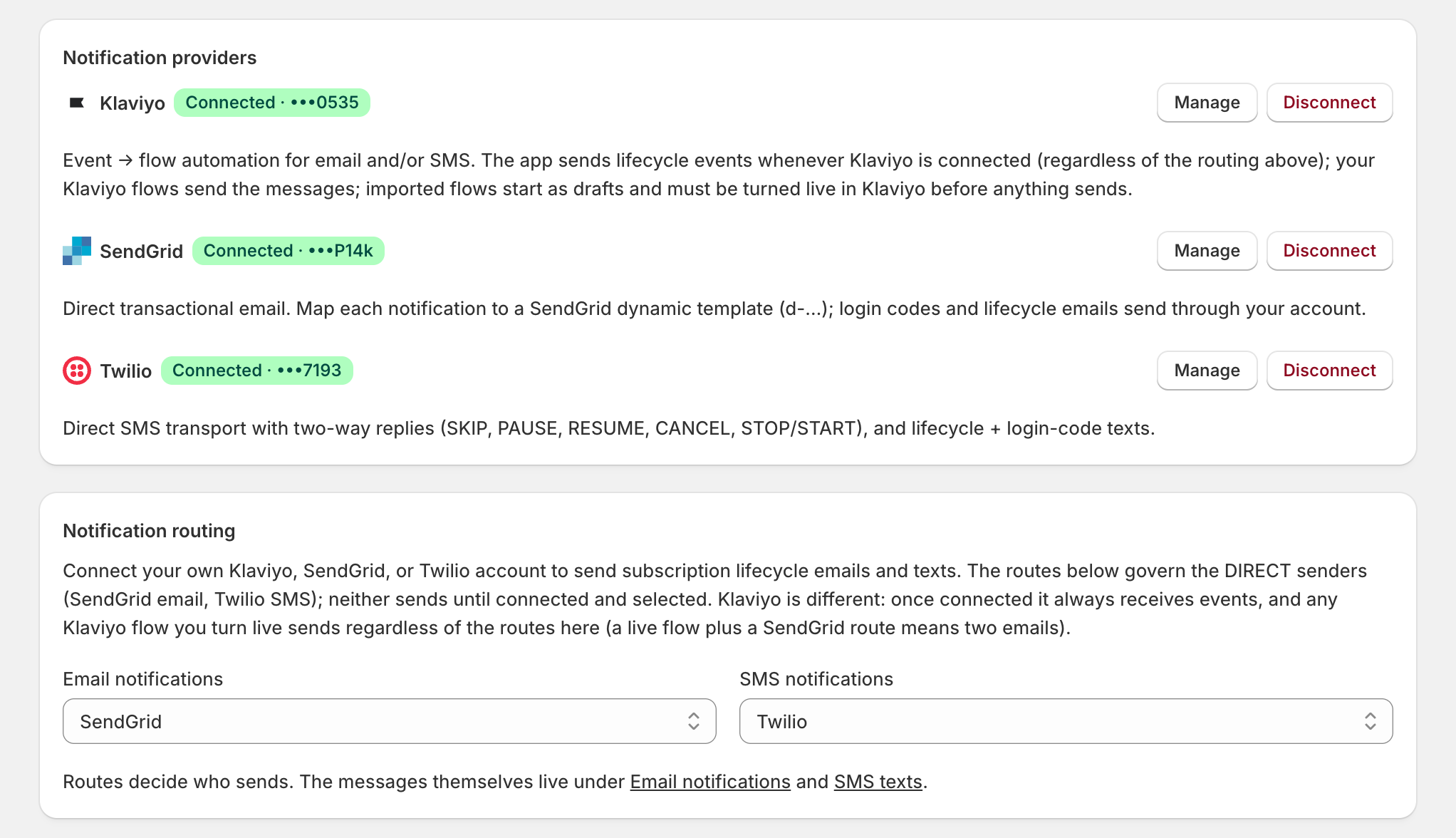
- Open Settings > Integrations. Under Notification providers, three can connect: Klaviyo (flows for email and SMS), SendGrid (email), Twilio (SMS). Helpdesk and analytics are covered in Set up Gorgias and Set up analytics and monitoring.
- Click Connect on each one you use; credentials, settings, and the test live in its modal (Manage, once connected). Fill SendGrid’s From email and From name before testing; enter your own number on Twilio. Klaviyo’s Test connection sends a test event, not a message.
- On SendGrid, also click Set up via API under its event webhook to record opens, clicks, bounces, and blocks on the subscriber’s Notifications table (greyed out until SendGrid is connected).
Checkpoint: every provider shows its green Connected badge, and each test arrived.
2
Route the two channels
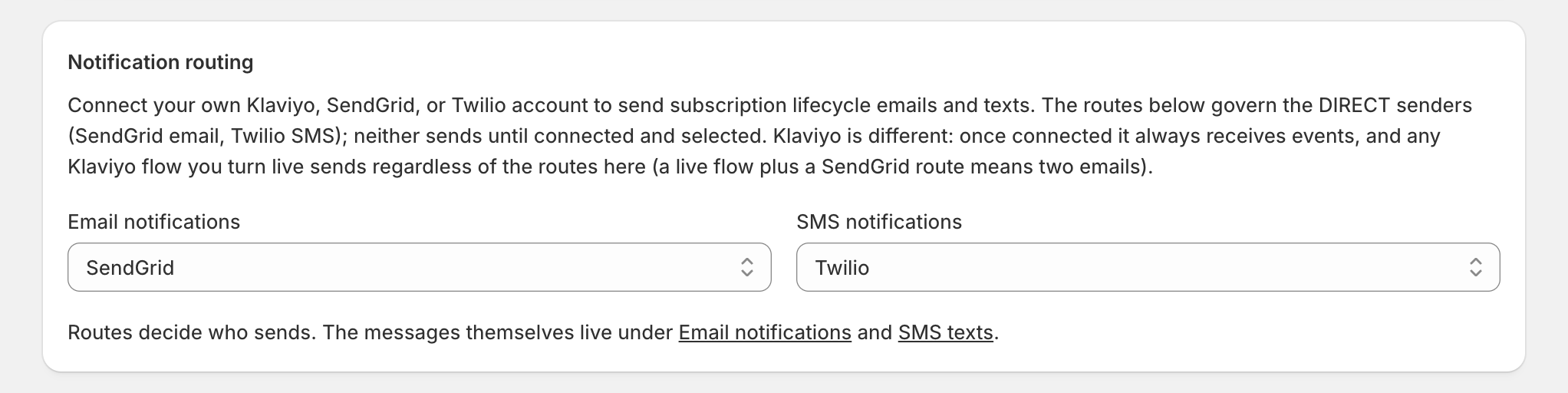
- Under Notification routing, pick the Email notifications and SMS notifications routes, then click Save in the bar at the top.
- SendGrid and Twilio send only once connected and selected.
- Klaviyo always receives events once connected, and live flows send regardless of the routes; a live flow plus an active SendGrid route means two emails for one event, so hold each event in one place.
Checkpoint: one route per channel, saved, no event in two senders.
3
Wire Twilio's webhooks
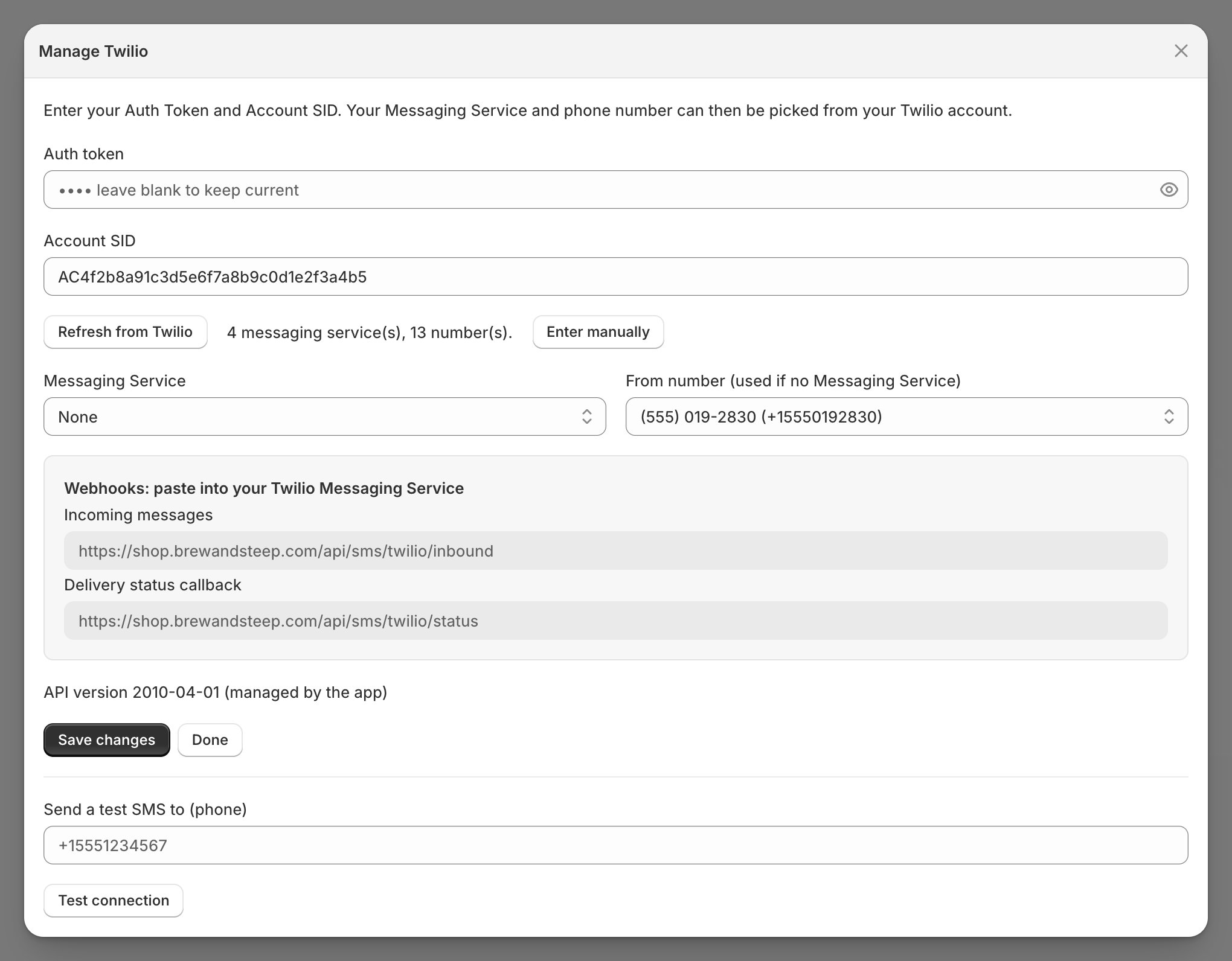
- Using Twilio? Pick a Messaging Service or From number in its modal; two URLs show under Webhooks: paste into your Twilio Messaging Service.
- Paste both into Twilio. Incoming messages makes the reply commands work (SKIP, PAUSE, RESUME, CANCEL, STOP/START); Delivery status callback is a backup, but paste it anyway.
- Edit the automatic replies on the SMS replies page of the Notifications hub.
Checkpoint: both URLs pasted into the Messaging Service or number the modal saved.
4
Turn on the events
- Open Settings > Notifications. A new install starts with every lifecycle event off.
- The Email page lists each event with a switch and a template picker; the SMS texts page lists each text with a switch and an editable message.
- The switches appear only while SendGrid is connected and govern only SendGrid; a Klaviyo event sends when its flow is live in Klaviyo.
- First time on Klaviyo, click Set up templates & flows; flows arrive as drafts. Set the ones you rely on live in Klaviyo (View created flows & templates shows each status).
- Portal login code and Login link have no working off switch; on Klaviyo, though, a draft flow sends nothing, login codes included.
Checkpoint: the events you need are on: switches here, live flows in Klaviyo.
When something goes quiet later, the fixes live in When emails don’t arrive and When texts don’t arrive.
The templates and flows update with one click. When newer versions ship, click Update to latest on the provider’s card (an Update available badge appears): SendGrid templates get a new active version (the old stays in version history) and Klaviyo flows keep their live-or-draft status. Customized content gets replaced: re-apply your edits after.
