

1
No provider connected
- The symptom: nothing arrives on any channel, login codes included.
- The platform never sends from its own servers: SendGrid or Klaviyo sends email, Twilio or Klaviyo texts; no provider, no messages.
- In Settings > Integrations, connect a provider: credentials, settings, and Test connection live in its Connect modal (Manage once connected). First-time setup: Set up email and SMS.
- Under Notification routing, pick the Email notifications and SMS notifications routes, then Save in the bar at the top. SendGrid and Twilio send only once connected and selected; Klaviyo, once connected, receives every event whether or not it holds a route.
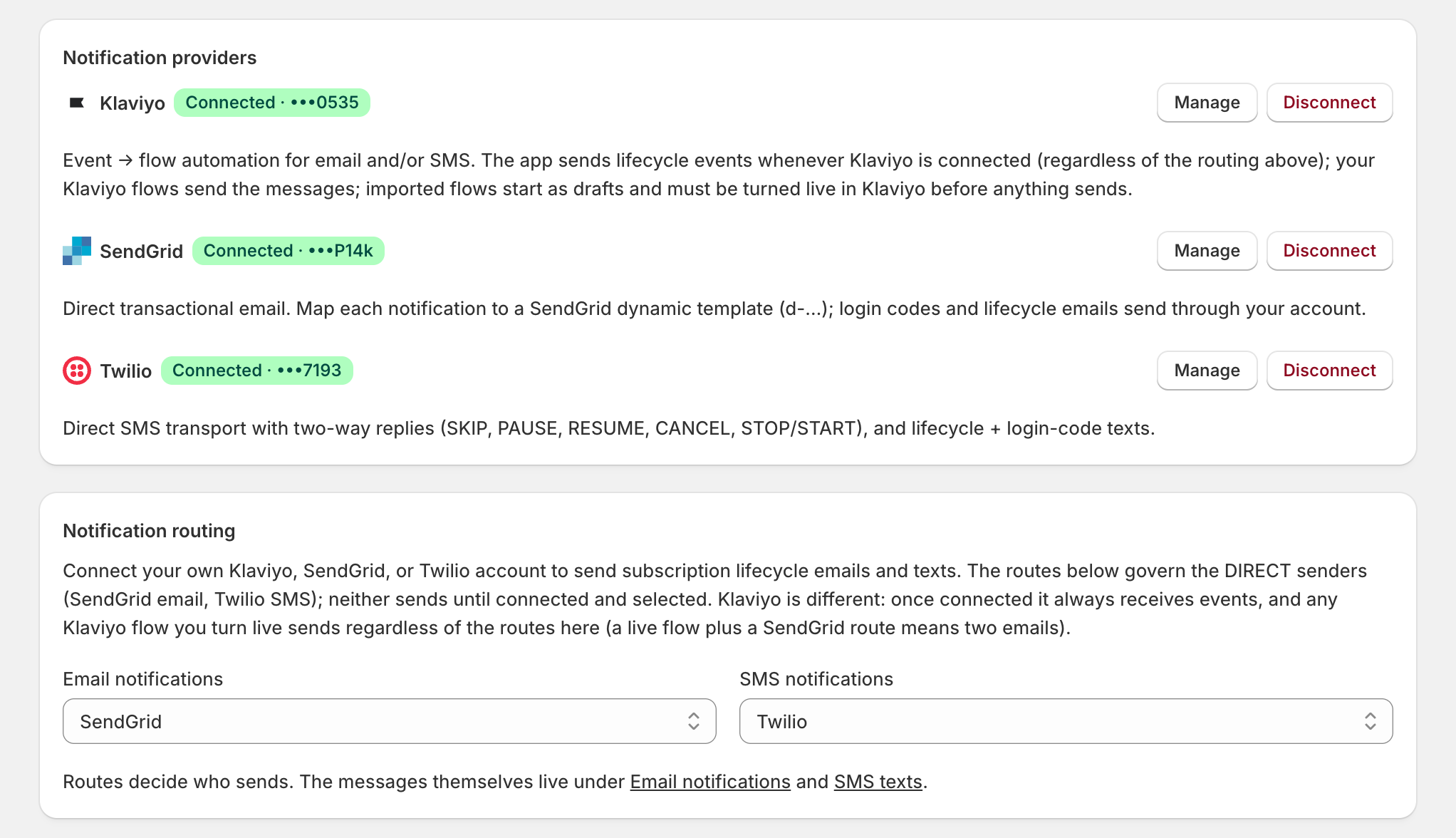
Checkpoint: the test arrives (inbox, Klaviyo activity feed, or your phone).
2
Klaviyo flows are still drafts
- The symptom: Klaviyo connected and routed, still nothing sends, login codes included.
- Klaviyo flows import as drafts, and a draft flow sends nothing.
- Open Settings > Notifications > Email, click View created flows & templates to see each flow’s status, and set every flow you rely on to live in Klaviyo.
Checkpoint: every flow you rely on reads live.
3
Two emails for one event
- The symptom: subscribers get everything twice.
- A live Klaviyo flow sends regardless of the email route, so a live flow plus an active SendGrid route is two senders for one event.
- Pick one: set the flow back to draft in Klaviyo, or move the Email notifications route to Klaviyo under Settings > Integrations. The Email page flags the overlap.
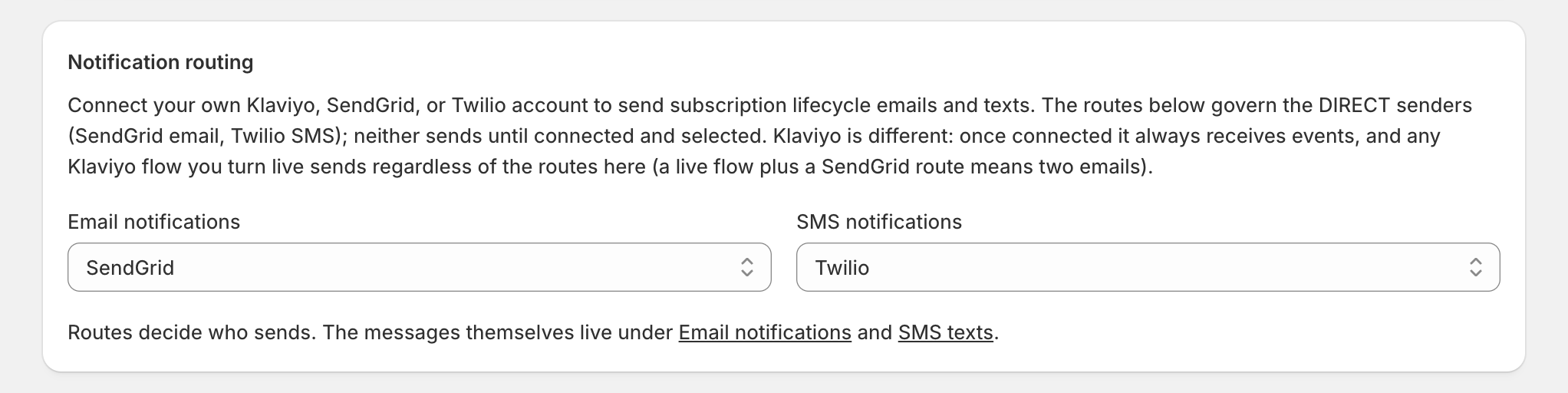
Checkpoint: the Email page no longer flags an overlap.
4
The event is off, or the subscriber never opted in
- The symptom: one email never sends; the rest arrive.
- A new install starts with every lifecycle event switched off.
- Flip the event’s switch under Settings > Notifications > Email. One subscriber missing texts is a consent case: When texts don’t arrive.
Login codes always send. Portal login code is marked always on; Login link shows a switch, but turning it off changes nothing. Missing login emails point to the first two causes, not a switch.
Checkpoint: the event’s switch is on.
5
Confirm the fix
- The subscriber’s page in admin lists every send under Notifications with channel and status.
- A bad API key retries a few times, then fails with the Notification deliveries failed alert. On Settings > Operational health, the Integration connections panel re-checks each key live: a bad one reads Failing with the provider’s reason and recent delivery errors quoted, and View logs opens the provider’s console.
- The alert counts failures over a rolling 24 hours, so it can stay open up to a day after the fix; anything else there is When an alert opens.
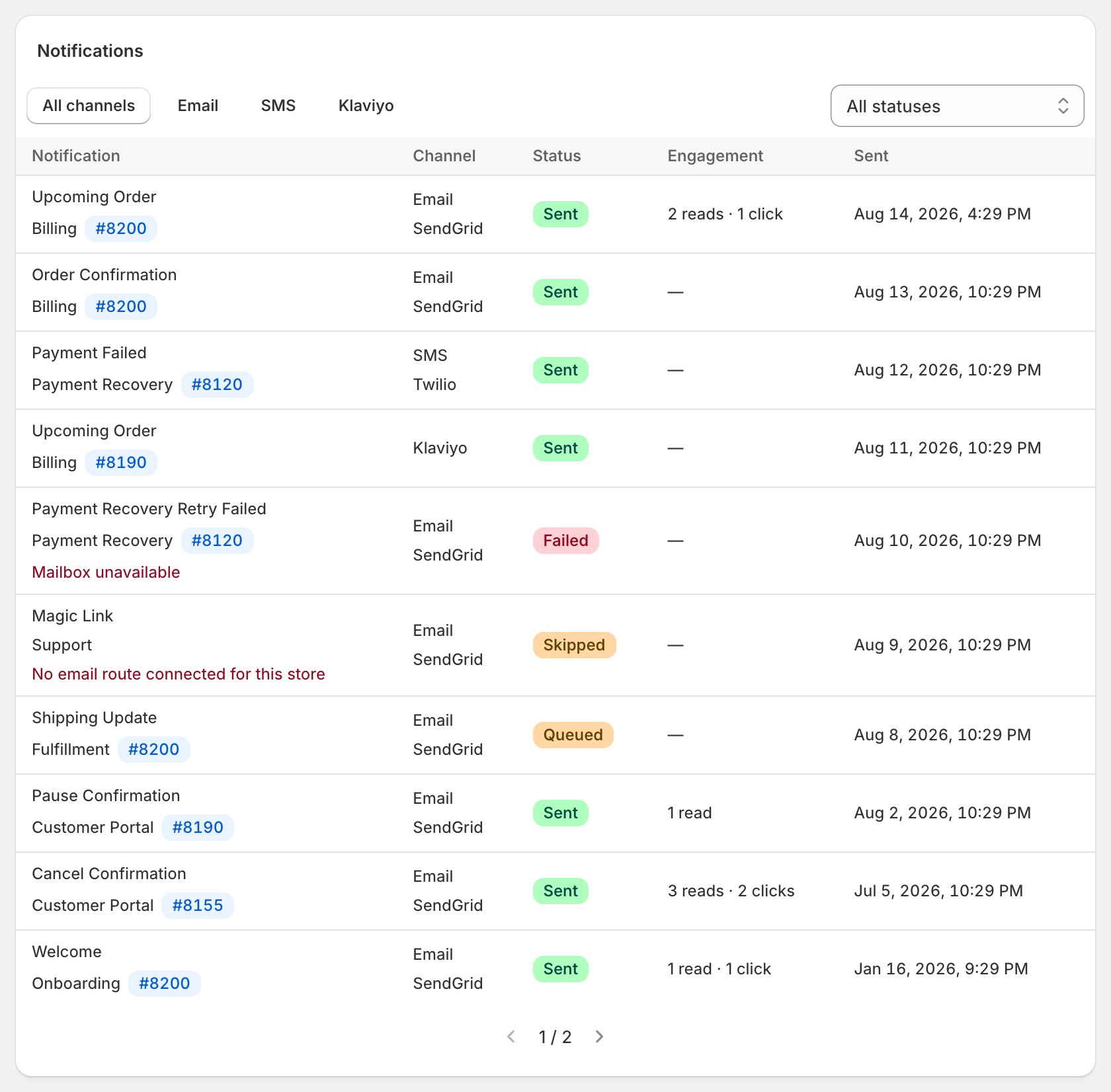
Checkpoint: new sends read sent; any open alert resolves within the day.
6
Still stuck? Read the provider's log
- “Sent” means your provider accepted the message; if it never lands, read the provider’s dashboard.
- Failed instead? Start with the row’s own error text.
Checkpoint: the provider’s log names the reason.