

1
Save the shared secret
- Open Settings > Integrations and find Gorgias under Support. Click Connect.
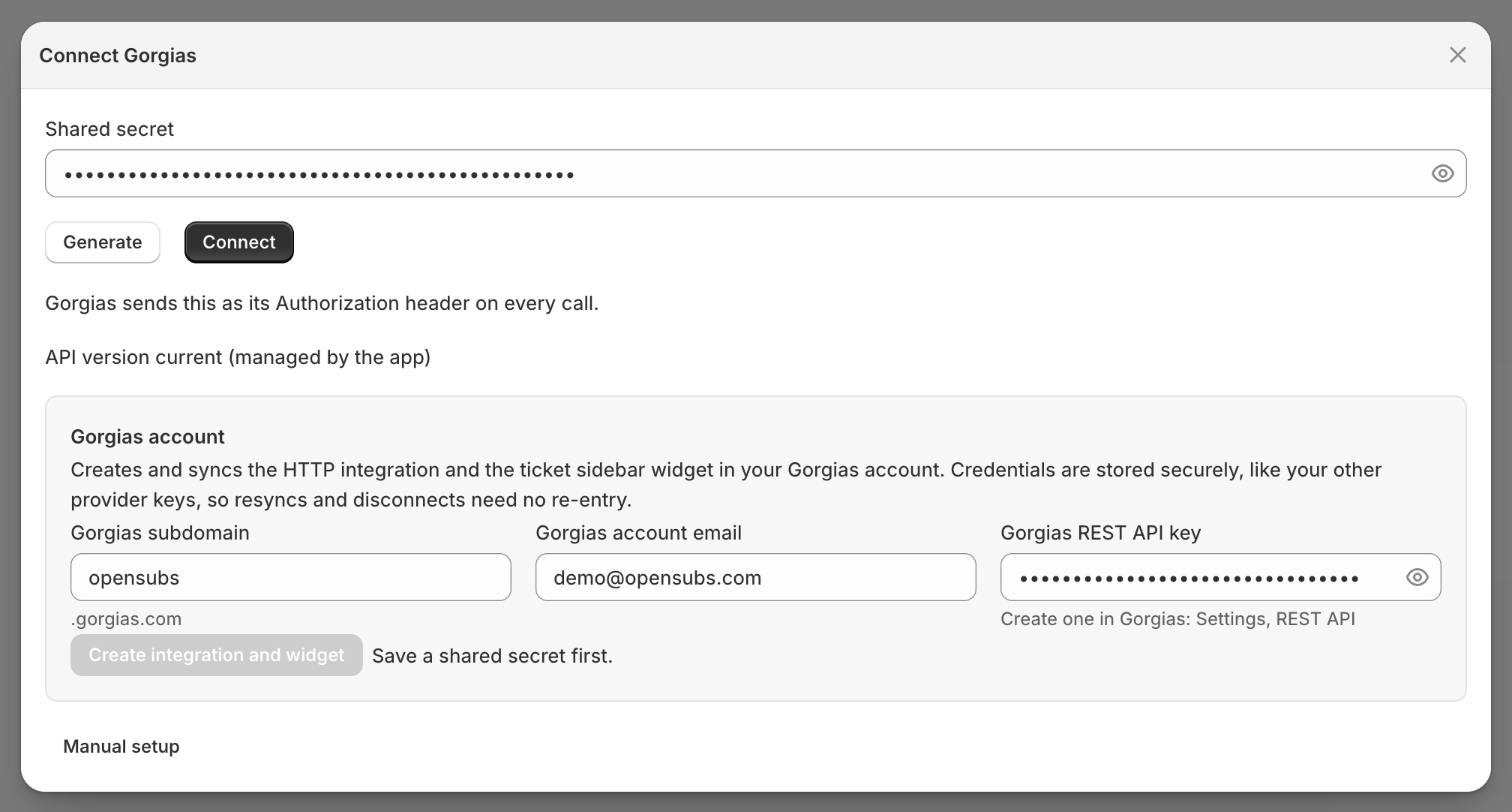
- In Shared secret, click Generate (or paste your own), then click Connect. Gorgias sends this secret as its authorization header; it isn’t shown again after saving.
Checkpoint: the Gorgias card reads Connected.
2
Let it build Gorgias for you
- In the Gorgias account box, enter your Gorgias subdomain, Gorgias account email, and a Gorgias REST API key (created in Gorgias under Settings > REST API).
- Click Create integration and widget: OpenSubs creates the HTTP integration and the sidebar widget in your Gorgias account.
- Credentials are stored; Edit credentials swaps them out. After setup the button reads Resync widget: click it to update the installed widget in place.
- When a newer widget is available, the card shows an Update available badge and an Update to latest button.
Checkpoint: a ticket in Gorgias shows the widget.
3
Read the sidebar
- The widget loads when a ticket is created, updated, or gets a new message, looked up by the ticket customer’s email.
- The top card is the subscriber: status, subscription counts, first subscribed date, recurring revenue and orders, and lifetime spend and orders. Log in as customer opens their portal; the card’s title opens them in your admin.
- Below, three lists: Active subscriptions (the first three), Paused subscriptions, and Cancelled subscriptions. Each card is titled with its subscription ID (opens it in your admin), lists products under Items (rows expand to quantity and price), and shows what fits its status: next order and payment issues for active, pause date for paused, date and reason for cancelled.
- Cards carry your store’s logo, copied from your branding at setup; no logo means Gorgias’s default icons.
- A ticket from someone who never subscribed renders the widget empty, without error.
Checkpoint: a real subscriber’s ticket sorts their subscriptions into the right lists.
4
Know the buttons
Each list carries only the actions that make sense there:
- Buttons with a field open a small dialog first; the rest run on one click.
- A click on a stale widget gets a plain “refresh the ticket” message.
- Every button runs the same machinery as the admin: the Shopify contract updates, the subscription’s History gets its row, and the usual notifications send. The History row and Analytics > Activity name Gorgias as the source.
- Cancel here is an admin-style cancel and skips your cancellation flow’s save offers, so the login-link habit from When a subscriber asks for help still applies.
Checkpoint: a test action’s History row names Gorgias.
Building it by hand instead. Manual setup at the bottom of the modal unfolds the two endpoint URLs: the HTTP integration uses the data URL, method GET, the three ticket triggers, and an Authorization header of “Bearer ” plus your secret; action buttons POST to the action URL.
Disconnecting cleans up both sides. With your REST API key on file, Disconnect deletes the widget and HTTP integration from Gorgias, then removes the shared secret and setup state here.
When the sidebar is empty, check the ticket’s email first (no subscriptions renders it empty by design), then Settings > Operational health: the Integration connections panel verifies the integration and widget still exist in Gorgias, counts failed calls over the last day, and quotes the latest errors, and the integration’s Events tab in Gorgias logs every request and status. Unauthorized means the secret doesn’t match, the shop parameter is wrong, or the card was disconnected; Gorgias waits five seconds, doesn’t retry, and disables the integration after 500 consecutive failures, so re-enable it there after a long-broken secret.