

1
Count who's still on it
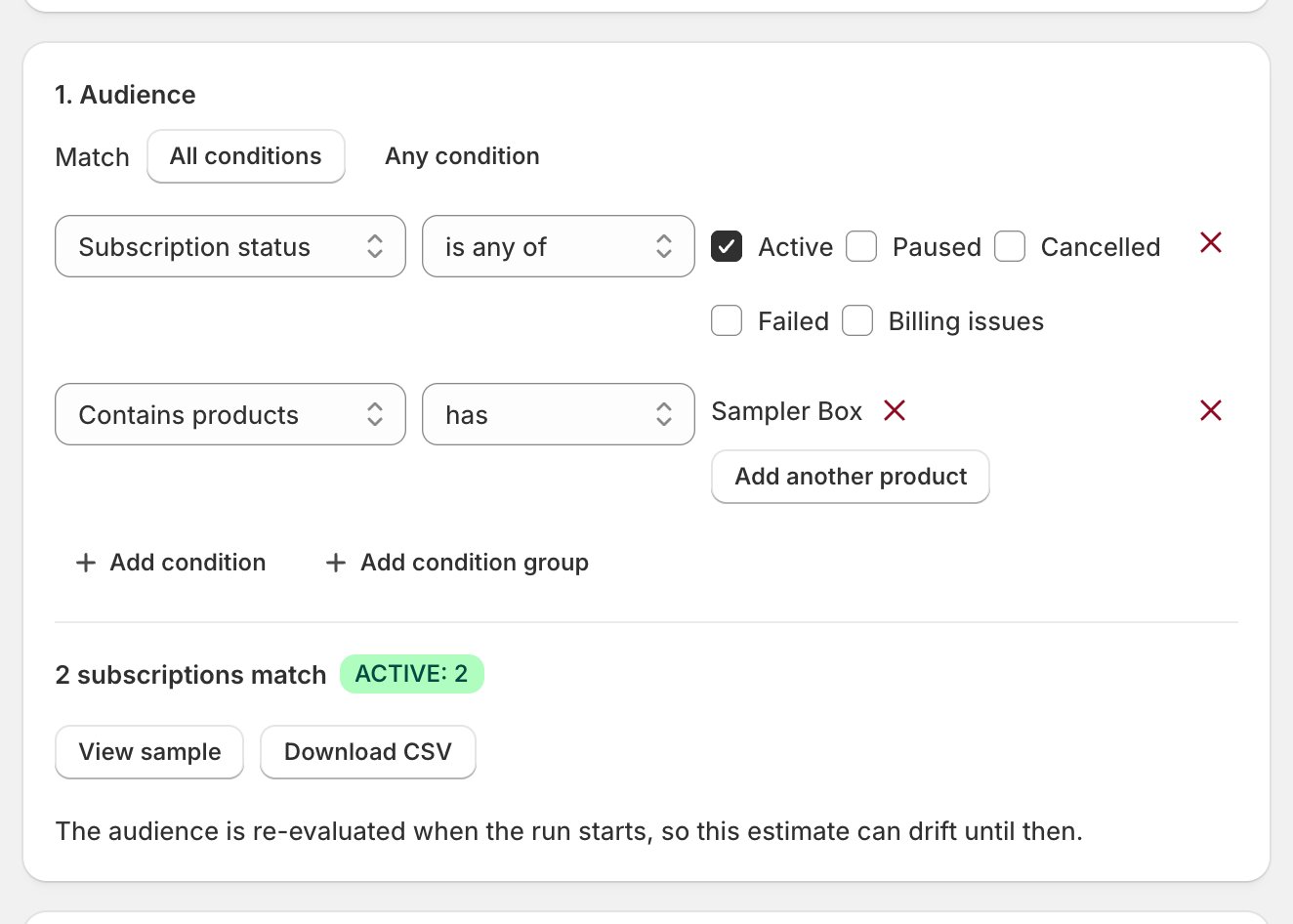
- Open Bulk operations > New bulk operation and keep the preset condition: Subscription status is Active.
- Add condition, set the field to Contains products, and pick the retiring product. The estimate is your number; Download CSV lists the names.
- The Product filter on Subscriptions reads higher: it also counts one-time lines and past statuses.
- Do this while the selling plan group still exists: the filter and pickers only list attached products.
- One-time add-on lines don’t count in the estimate.
Checkpoint: you have the number and the CSV of names.
2
Attach the substitute to a selling plan group
- Swapping to a replacement product? Attach it to a live selling plan group under Settings > Selling plans first.
- The swap prices the new line from that group, so check it covers the swap-target variant; uncovered means full catalog price, no subscription discount, and an unavailable line.
- Removing the product outright? Skip this step.
Checkpoint: the substitute has a plan attached, swap-target variant covered.
3
Swap or remove, in one run
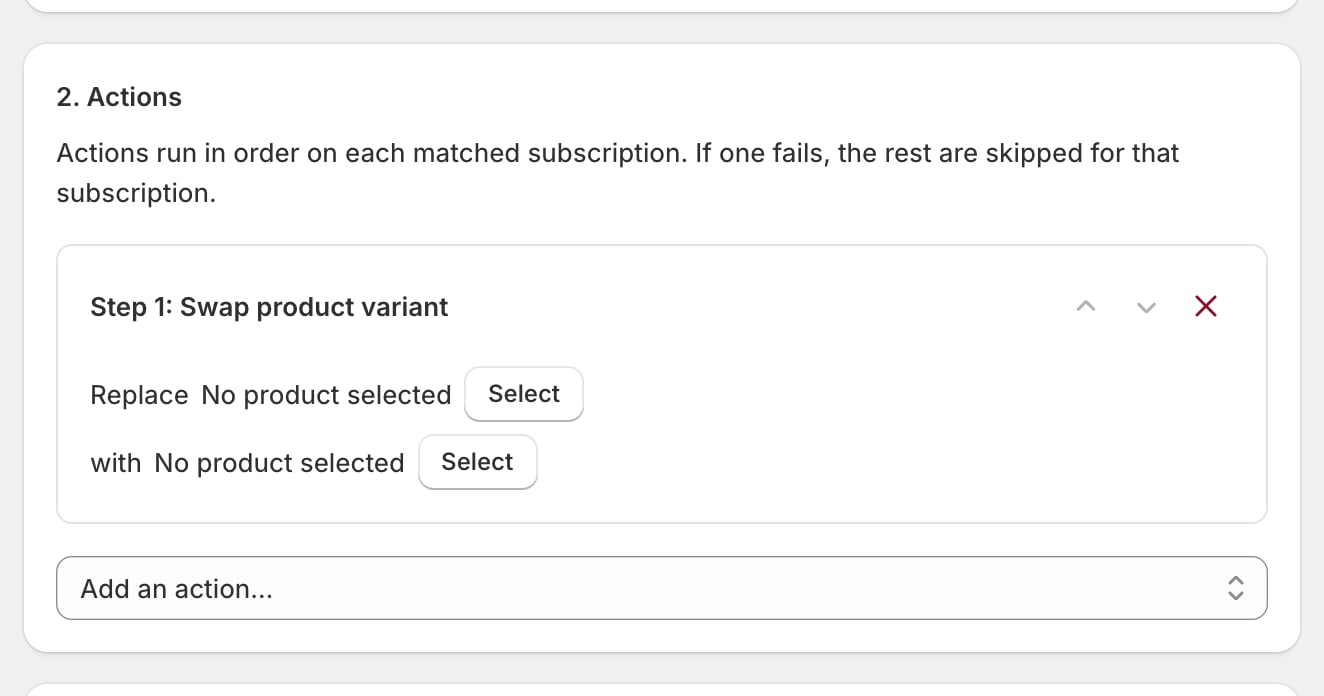
- In the same bulk operation, add the action. Swap product variant takes two picks: Replace the retiring variant, with the substitute. Remove product takes one: the retiring variant.
- Both are variant-scoped: one action per variant, up to four per run.
- Both act on active subscriptions only and send no notification; send any heads-up yourself.
- Remove product refuses to empty a subscription: anyone whose only recurring line is the retiring product lands in the Skipped tab.
- Run it; Change many at once covers the builder.
Checkpoint: the run finished, every skipped row read.
4
Handle the subscriptions the run skipped
- Single-line subscriptions that Remove skipped: swap them to the substitute, edit them one at a time, or run a bulk Cancel subscription.
- Paused and failed subscriptions are outside both actions’ reach; handle them from their subscription pages.
Checkpoint: the skipped list is empty, or every name has a decision.
5
Verify zero, then retire it
- Build the same audience in a new bulk operation and confirm 0 subscriptions match.
- Then set the product to draft or archived (or delete it) in the Shopify admin, and delete its group under Settings > Selling plans.
Checkpoint: zero first, Shopify second.
Just stopping new subscribers is gentler than retirement. Remove the product from your Online Store sales channel in Shopify, leaving its status active: existing subscriptions keep billing, editing, and shipping. The One-time only purchase type under Settings > Selling plans stops portal visitors adding it as a new subscription line.
Same screen, different problem: stale product data. If the portal shows an old price, a dead variant, or a missing image, select the products in the Products view of Settings > Selling plans and click Refresh selected (or Refresh all from Shopify).